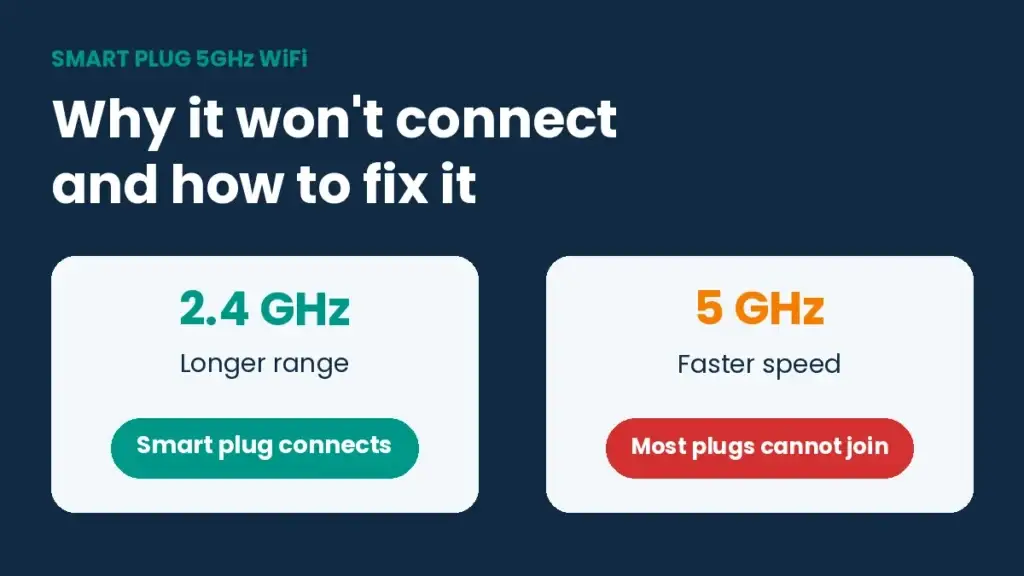
Most smart plugs cannot join a 5GHz network. If your router broadcasts one name for both bands, setup often stalls and the app says it cannot find your device. The plug is usually fine. A smart plug 5GHz WiFi problem comes down to which band your phone is on during setup, plus a few router settings that get in the way.
Below you will find which plugs do support 5GHz, a six-step fix for the ones that do not, and the router settings that most guides skip.
Does a smart plug work on 5GHz WiFi?
Most do not. The WiFi radio inside a typical plug talks on the 2.4 GHz band only. A plug sends on/off commands and a little status data, so it gains nothing from the extra speed of 5 GHz, and 2.4 GHz reaches farther through walls.
Your router can still run both bands at once. The plug sits on 2.4 GHz while phones, TVs and laptops use 5 GHz, which also leaves that faster band free for streaming and gaming. If you are still choosing a model, our best smart plugs roundup covers the ones worth buying.
Smart plugs that support 5GHz
A few models list dual-band support. Review sites name the Leviton Decora Smart Plug DW15P-1BW and the EIGHTREE ET05 as 5GHz compatible. The BroadLink SP4D-US is also listed as dual band, though one reviewer says it only pairs on 5GHz with certain router brands. The Leviton plug needs you to sign in to its app, so it is not fully local.
Read the product page before you buy. Smart Geek Home notes that a "5GHz smart plug" label sometimes refers to the router and not the plug's own radio. Android Central keeps a longer list. Specs change, so confirm band support on the current listing.
Why your smart plug won't connect
Band steering hides the 2.4 GHz network
Many routers and mesh systems show one network name for both bands and pick the band for each device. During setup your phone usually lands on 5 GHz while the plug waits on 2.4 GHz. Users on the Bell community forum report that with band steering on, phones and computers connect to 5 GHz and cannot configure plugs that only use 2.4 GHz.
WPA3 security rejects the plug
Some plugs cannot join a network set to WPA3. One Netgear forum user fixed a plug that would not pair by changing the 2.4 GHz security from WPA2 + WPA3 mixed mode to WPA2 only. Another user reported the same fix for a router in bridge mode.
The phone is on the wrong band
Many apps pass your phone's WiFi details to the plug while pairing. If the phone is on 5 GHz, those details may not match what the plug can reach.
The 2.4 GHz signal is weak or crowded
A plug in a far room may see too weak a signal to finish pairing, and neighbors on the same channel make it worse.

How to connect a smart plug on a dual-band router
These steps work for most 2.4 GHz plugs. Menu names differ by brand, so look for Smart Connect, band steering or a common network name option.
- Plug the smart plug into an outlet in the same room as the router.
- Put the plug into pairing mode. On most models the LED blinks quickly after you hold the button for a few seconds, but check your manual.
- Split the bands. Turn off band steering or Smart Connect, or give the 5 GHz network a temporary new name. The Bell forum thread describes both options.
- Join your phone to the 2.4 GHz network and forget the 5 GHz one.
- Set the 2.4 GHz security to WPA2. If mixed mode fails, try WPA2 only.
- Add the plug in its app. Once the app confirms it, move the plug to its final outlet.

After pairing you can switch the combined network name back on. A repair-shop guide to smart appliances says the device keeps using 2.4 GHz because it cannot use 5 GHz. For the app side of setup, see how to set up a smart plug.
What most guides leave out
Most guides say the phone must be on 2.4 GHz. Forum reports are mixed. One user on the Netgear forum paired Aukey, Belkin, Eufy, Kasa and Teckin plugs with the phone on the 5 GHz band of an Orbi system, while others failed until they switched the phone. If one band fails, test the other before you reset anything.
A factory reset only clears a stuck pairing state. If WPA3 or band steering is the cause, the plug fails again afterward.
On a crowded 2.4 GHz band, a Netgear forum reply suggests fixing the channel by hand to 1, 6 or 11. The Commercial Electric plug thread also shows the WPA2 fix in detail.
If you would rather leave your main network alone, create a separate 2.4 GHz network for smart devices. Appliance repair technicians recommend this over buying a second router.
Should you buy a dual-band plug instead?
For most homes, no. Keeping a 2.4 GHz network on works with far more plugs. A dual-band plug makes sense when your router cannot broadcast 2.4 GHz at all, which happens on some ISP gateways. Thread and Zigbee plugs skip the WiFi band question but need a compatible hub or border router.
Before you buy anything, pick an ecosystem. Our smart home for beginners guide walks through it, and the Alexa vs Google Home comparison helps if you are torn between the two. You can also read Smart Home Perfected for another view on 5GHz plugs.
Smart plug 5GHz WiFi: FAQ
Do smart plugs work with 5GHz WiFi?
Most do not. They connect to a 2.4 GHz network only, so your router needs to broadcast one. A few models list dual-band support.
Can I keep one network name for both bands?
Yes, after setup. During pairing, split the bands or turn off band steering so your phone and the plug sit on the same band.
Why does my app say it cannot find the plug?
Usual causes are a phone on 5 GHz, WPA3-only security, or a plug too far from the router. Move the plug next to the router and set security to WPA2.
Do I need to turn off 5GHz permanently?
No. Leave 5 GHz on for your phones and laptops. Only the plug needs 2.4 GHz.
What if my router has no 2.4GHz option?
Check the router settings for a separate 2.4 GHz toggle. If there is none, use a dual-band plug, or a Thread or Zigbee plug with the right hub.